Skip to content
Accounting

Expense Management

Accounting

Expense Management

Set up expense categories, let employees submit receipts via mobile, manage approval workflows, and reimburse expenses through payroll or direct payment.

6 steps Updated Mar 7, 2026 SOP · Standard

Odoo Expenses lets employees submit expense claims, managers approve them, and accounting reimburse them — all in one workflow. Receipts can be uploaded via mobile app or email. This guide covers setup through reimbursement.

1

Configure Expense Categories

Go to Expenses → Configuration → Expense Categories.

Expense categories define what can be expensed and which GL account the cost posts to. Click New:

  • Expense Category Name — e.g., “Travel & Accommodation”, “Meals & Entertainment”, “Office Supplies”
  • Expense Account — the GL expense account (e.g., 6210 – Travel, 6220 – Meals)
  • Vendor Taxes — default tax rate on this expense type
  • Re-Invoice Expenses — enable to pass expenses back to customers on projects
  • Total / Unit Price — whether expenses are claimed as a total or per unit (e.g., mileage per km)

Create categories for every type of expense your employees incur regularly.
Step 1: Expense categories list with category name, expense account, and re-invoice settings

2

Submit an Expense (Employee View)

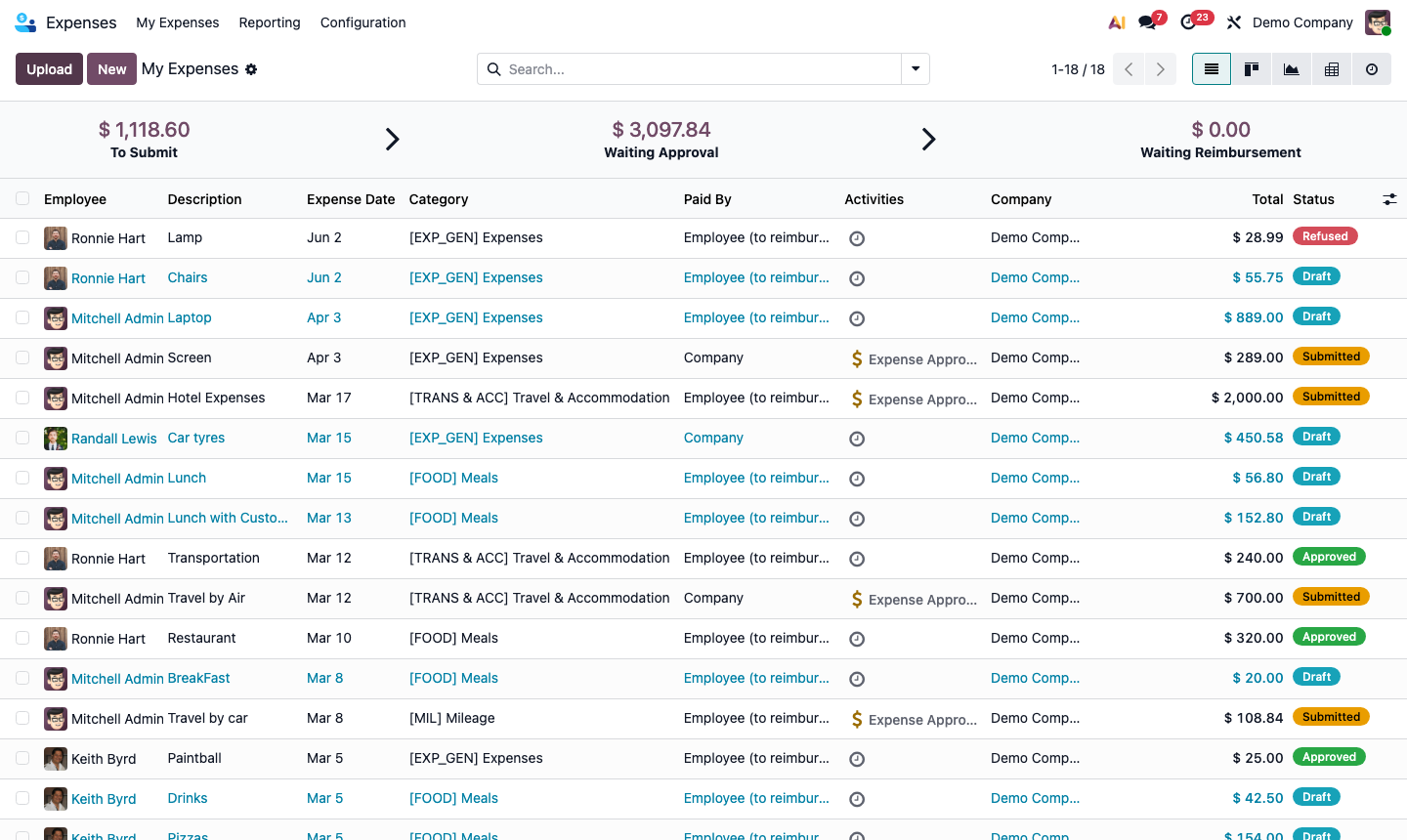
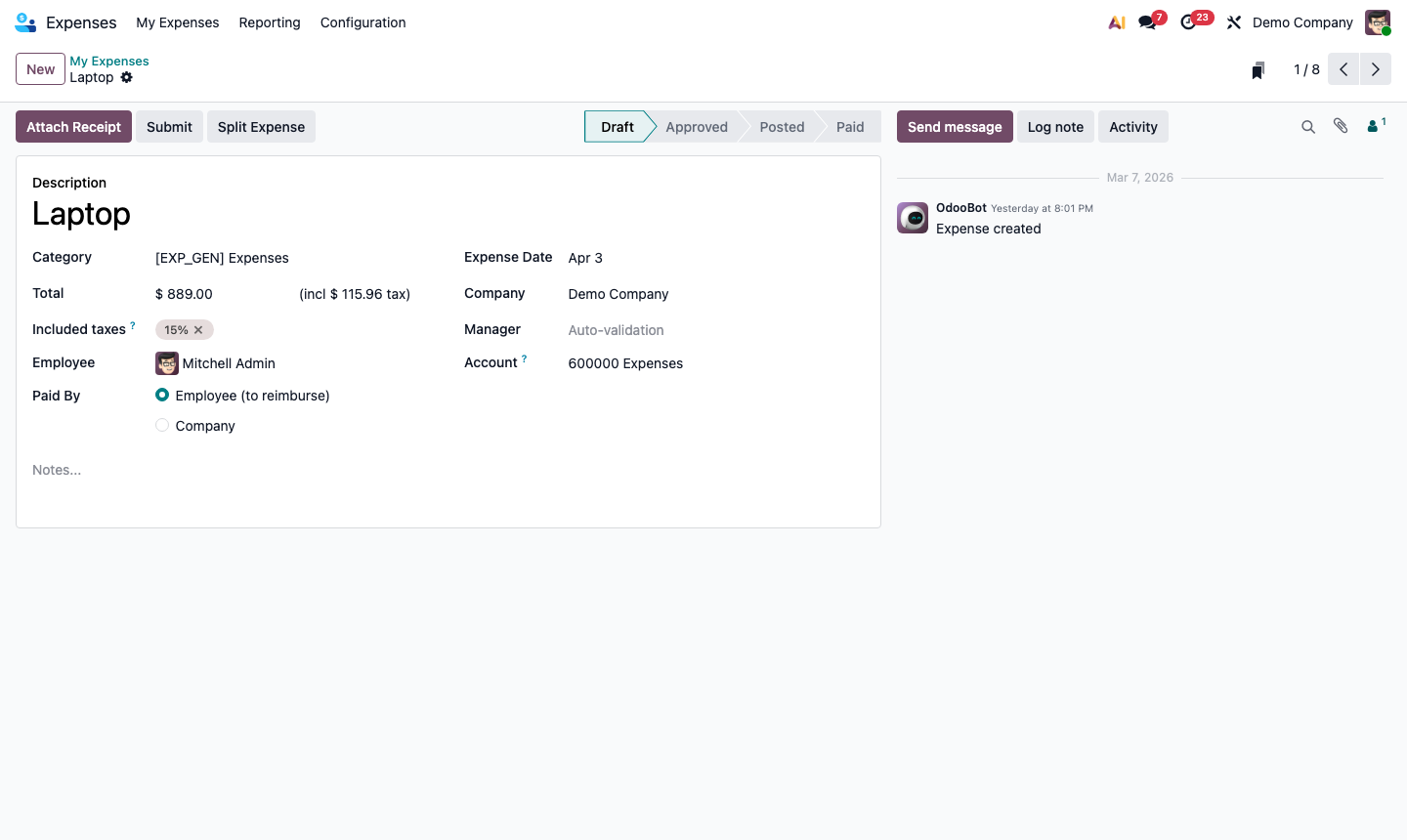
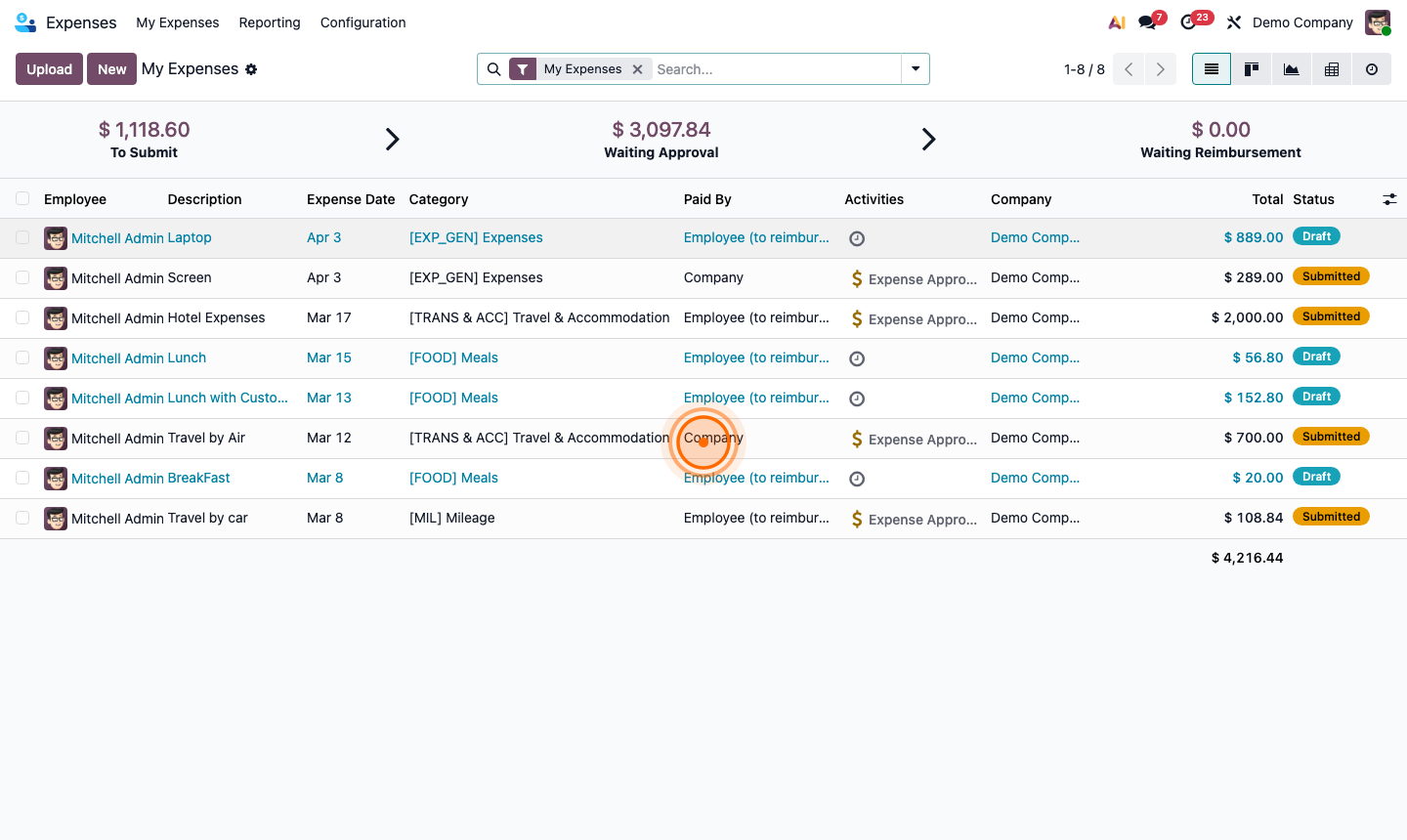
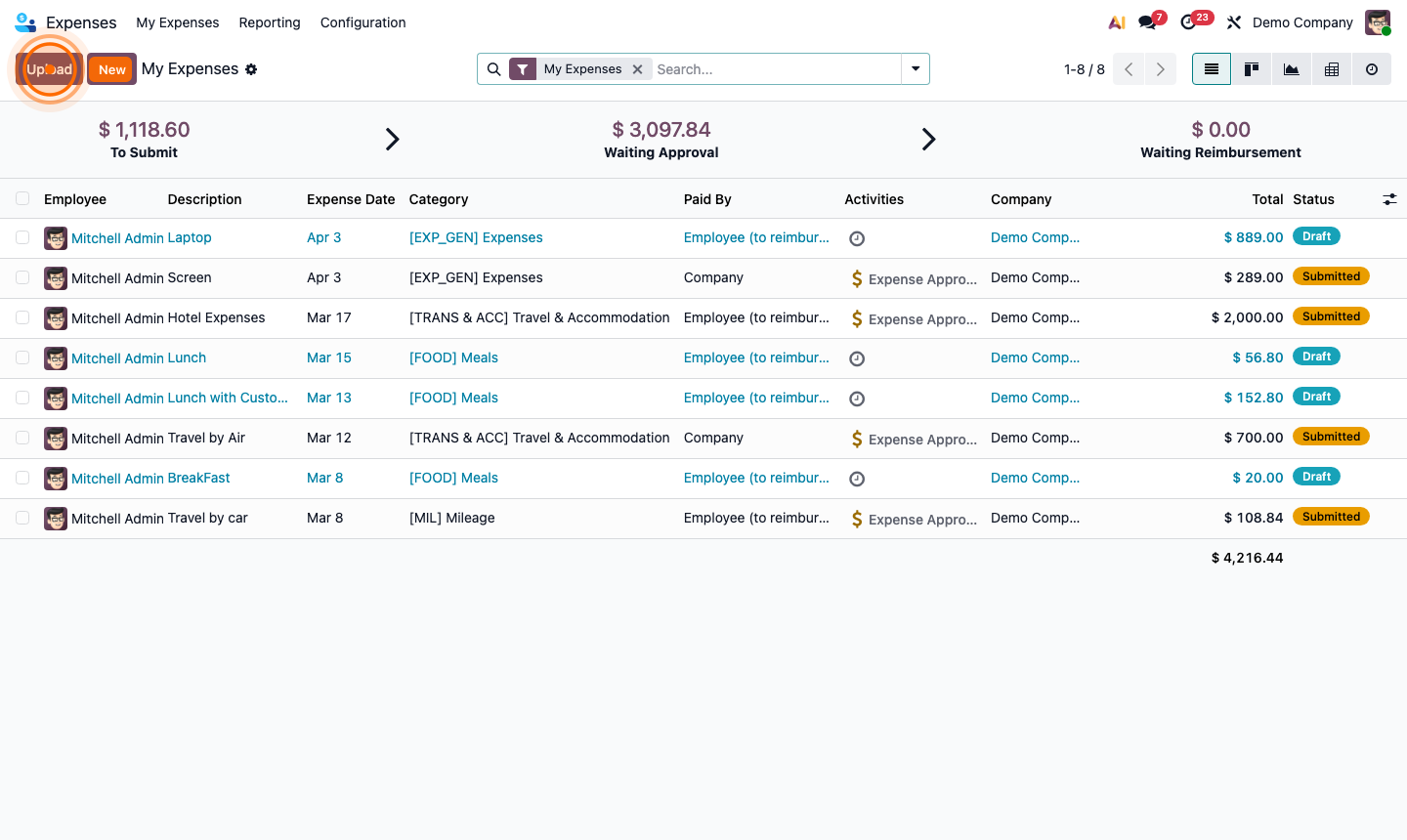
Employees go to the Expenses app (or mobile app) and click New Expense.

Fill in:

  • Expense Description — what the expense was for
  • Category — select from configured categories
  • Total — the amount (including taxes)
  • Currency — auto-fills company currency; change for foreign currency expenses
  • Date — when the expense occurred
  • Receipt — upload a photo or scan of the receipt (required for reimbursement)
  • Bill on Customer — link to a project/task to re-invoice the customer
  • Analytic Account — for internal cost tracking by project or department

Click Create Expense Report to group expenses into a report and submit for approval.

Step 2: New expense form with category, amount, date, and receipt upload fields

3

Manage Approval Workflow

Once an employee submits an expense report, it goes to their manager for approval.

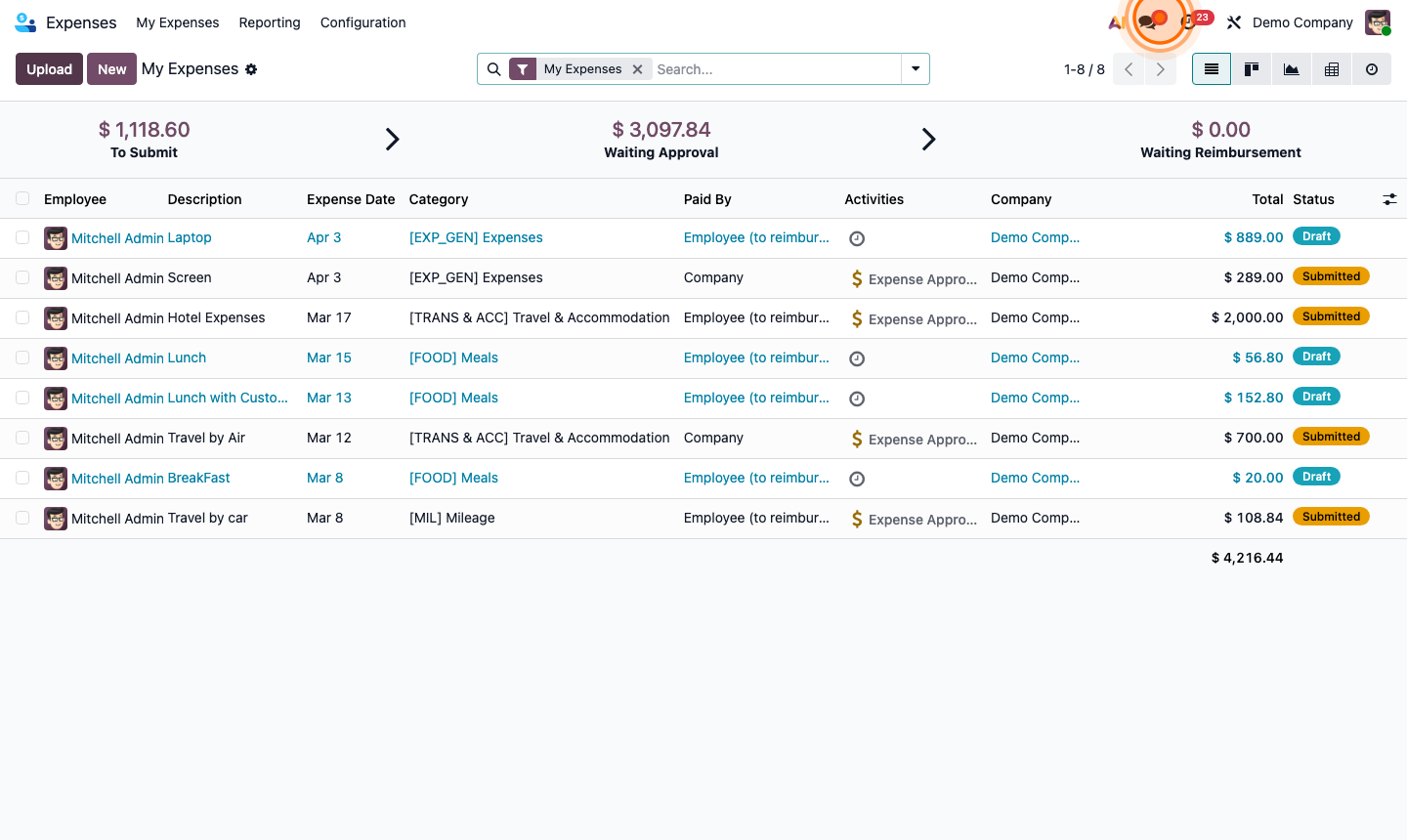
Manager view (Expenses → Expense Reports → To Approve):

  • Review each report and the attached receipts
  • Click Approve to move it to accounting, or Refuse with a reason

Configure multi-level approval for high-value claims: Go to Expenses → Configuration → Settings:

  • Enable Expense Approval by Manager for direct manager approval
  • Set Amount threshold above which a second approval is required (e.g., over £500 requires Finance Director approval)

Step 3: Expense reports list showing submitted reports awaiting approval with amounts and employee

4

Post Expenses to Accounting

After manager approval, the expense report goes to accounting.

Go to Expenses → Expense Reports → Approved.

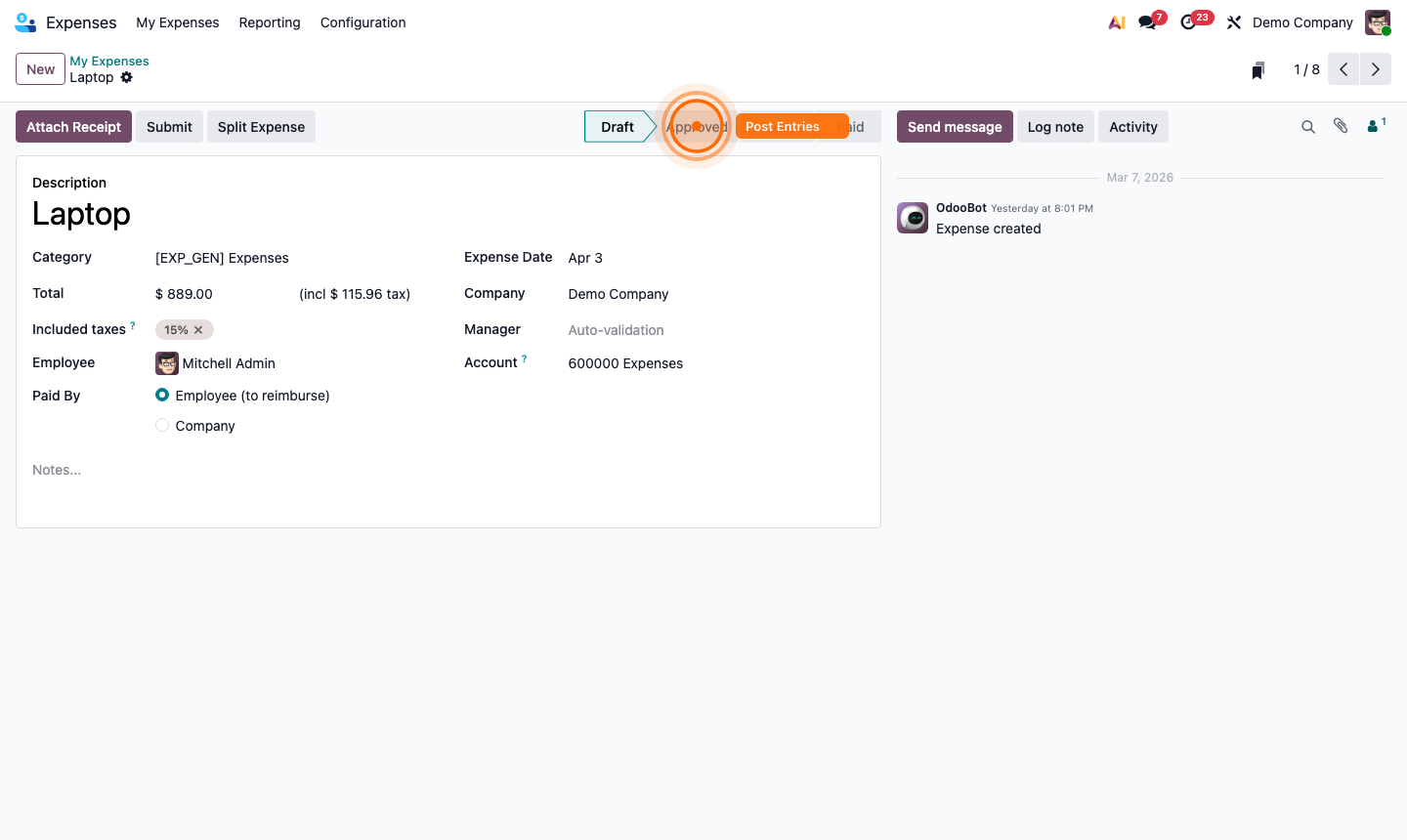
Click Post Journal Entries to:

  • Create journal entries for each expense line (debit expense account, credit employee payable)
  • Assign the correct accounting date and period
  • Apply analytic accounts for project cost tracking

Once posted, the expense appears in the employee’s outstanding payable balance.

Step 4: Approved expense report with Post Journal Entries button and accounting preview

5

Reimburse Employees

After posting, register the reimbursement payment.

Option 1 — Direct payment: Click Register Payment on the expense report. Select the payment journal (bank account) and date. Odoo creates a vendor payment to the employee and marks the expense as paid.

Option 2 — Via payroll: If expenses are reimbursed with the employee’s salary, mark the expense as “To Reimburse via Payroll” and handle in the Payroll module.

Option 3 — Company credit card: If the expense was paid by a company card, set the Payment Mode to “Company” on the expense. The expense is posted directly to the credit card liability account — no reimbursement needed.

Step 5: Expense reimbursement payment dialog showing bank journal, date, and amount to employee

6

Expense Reporting and Controls

Go to Expenses → Reporting → Expenses Analysis.

Analyse expenses by:

  • Employee — who is spending the most?
  • Category — which expense types are highest?
  • Project / Customer — cost breakdown for client billing
  • Period — monthly trend analysis

Controls to implement:

  • Set per-diem limits on categories (e.g., max £50/day for meals)
  • Require receipts for all claims above a minimum amount
  • Enable duplicate detection in settings to flag duplicate expense submissions

Step 6: Expense analysis report showing category breakdown by employee and period