Skip to content
Settings

Email & Notification Setup

Settings

Email & Notification Setup

Configure outgoing mail servers, email aliases, notification preferences, and automated email templates.

6 steps Updated Mar 7, 2026 SOP · Standard

Odoo sends emails for invoices, orders, HR notifications, and more. This guide walks you through configuring your outgoing mail server, setting up email aliases, and controlling when notifications are sent to users and customers.

1

Access Technical Email Settings

In Settings, use the search bar to find “Outgoing Mail” or navigate to Technical → Email → Outgoing Mail Servers.

You can also reach this from Settings → Discuss → Outgoing Mail.

The list shows any configured mail servers. A green “Connected” status means Odoo can send emails. If the list is empty, Odoo is using its own shared relay — fine for testing but not recommended for production.
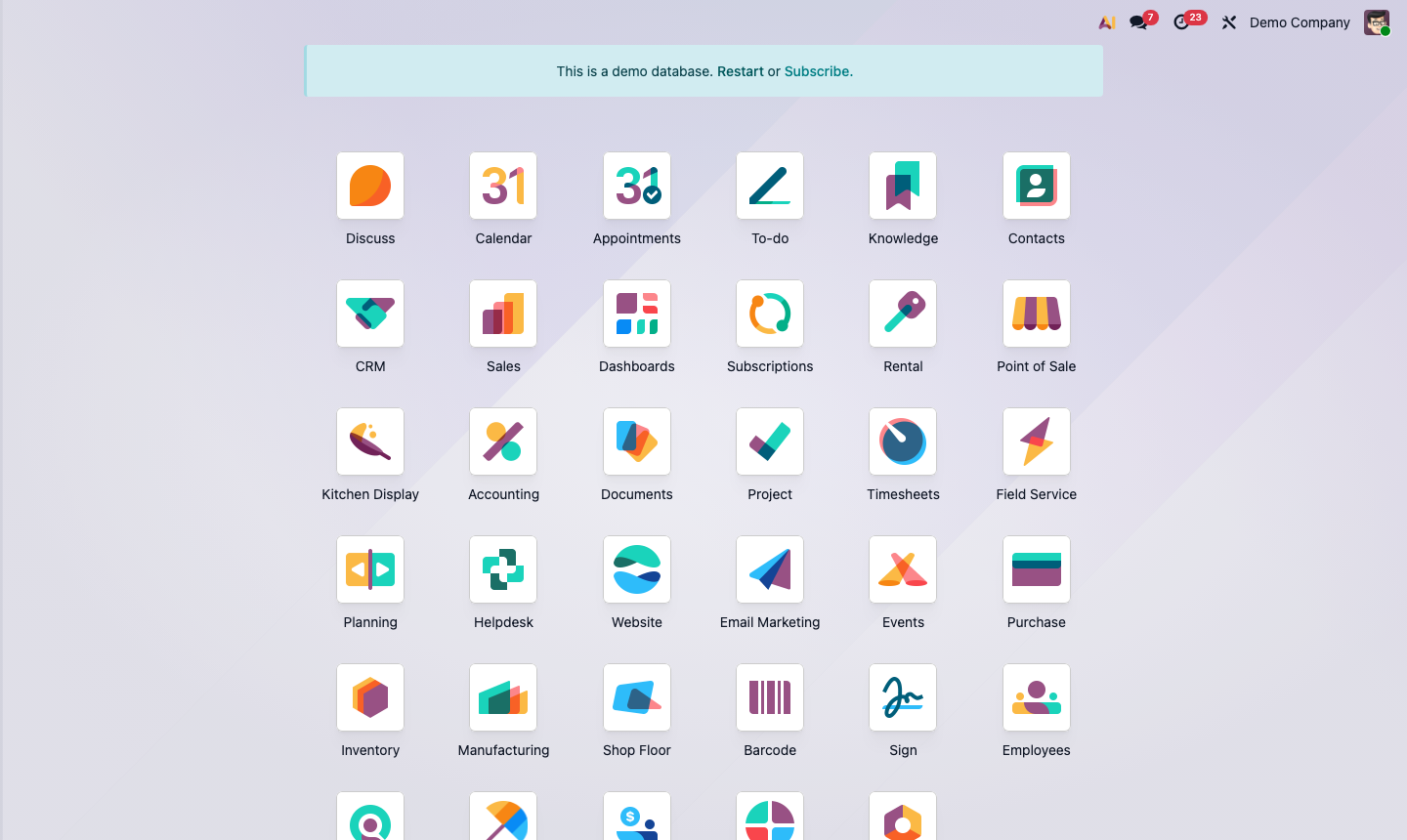
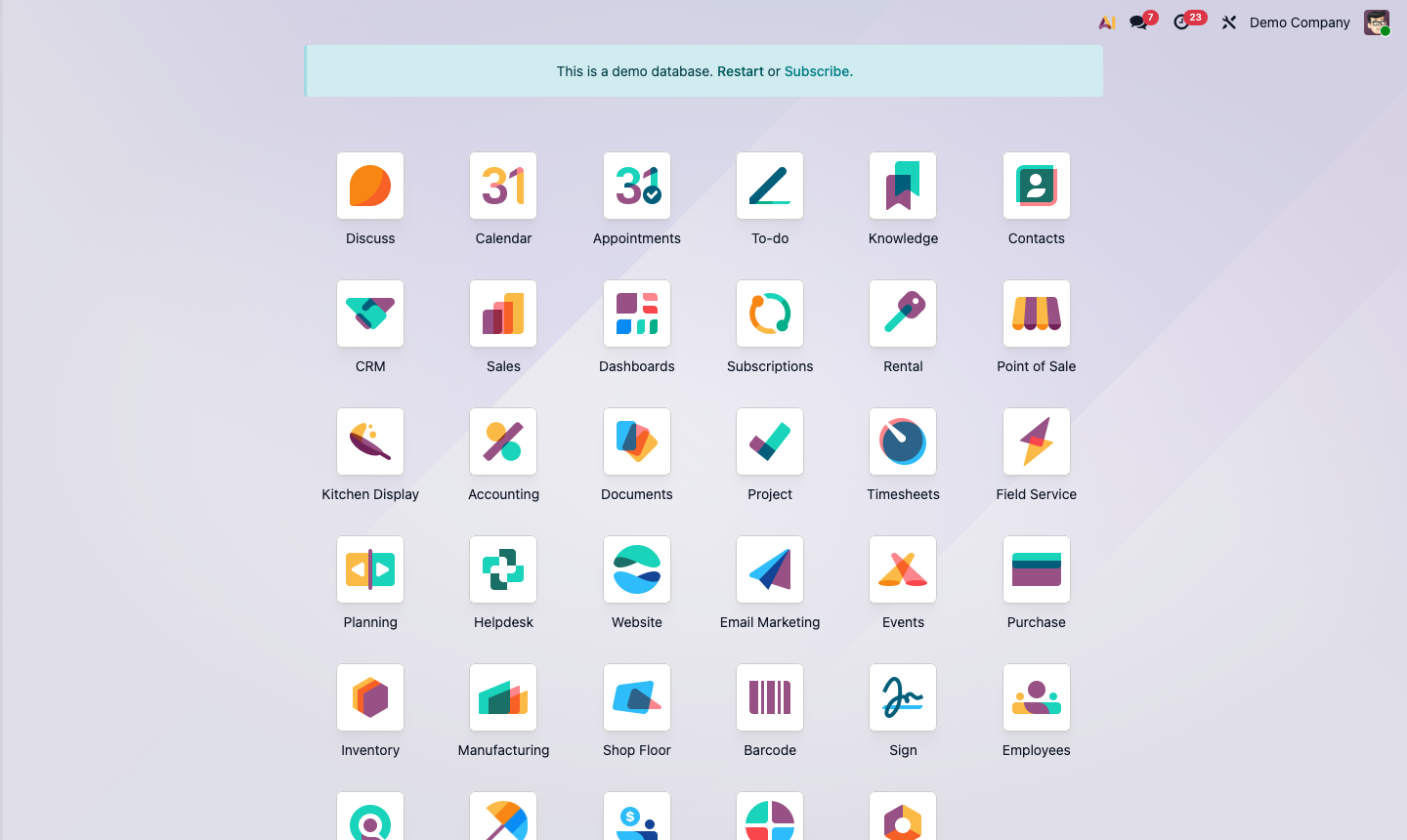
Step 1: Settings page with Outgoing Mail Server option highlighted

2

Add an Outgoing Mail Server

Click New to configure your SMTP server.

Fill in the form:

  • Description — e.g., “Company Gmail” or “Office 365 SMTP”
  • SMTP Server — your host (e.g., smtp.gmail.com, smtp.office365.com)
  • SMTP Port — 587 (TLS) or 465 (SSL)
  • Connection Security — TLS (STARTTLS) recommended
  • Username — your full email address
  • Password — your app password (not your account password for Gmail/365)

Click Test Connection to verify. A green success message means it’s working.

Step 2: Outgoing mail server form with SMTP settings and Test Connection button

3

Configure Incoming Email (Catchall)

To receive email replies back into Odoo (e.g., customer replies to invoices threading into the chatter):

Go to Settings → Technical → Email → Incoming Mail Servers. Click New.

Set up your IMAP connection:

  • Name — e.g., “Inbox Catchall”
  • Server Type — IMAP
  • Server — your IMAP host
  • Port — 993 (SSL) or 143 (TLS)
  • Login / Password

Set the Action to “Create leads”, “Create helpdesk tickets”, or another model so inbound emails automatically create records.

Step 3: Incoming mail server form with IMAP settings and action configuration

4

Set Up Email Aliases

Email aliases let external parties create Odoo records by emailing an address like [email protected].

Go to Settings → Technical → Email → Aliases.

Common aliases to configure:

  • sales@ → creates CRM leads
  • support@ → creates Helpdesk tickets
  • billing@ → creates Accounting records
  • hr@ → creates HR applicants

Each alias maps to a specific Odoo model and can set default values on the created record.

Step 4: Email aliases list showing sales, support, and billing aliases configured

5

Control User Notification Preferences

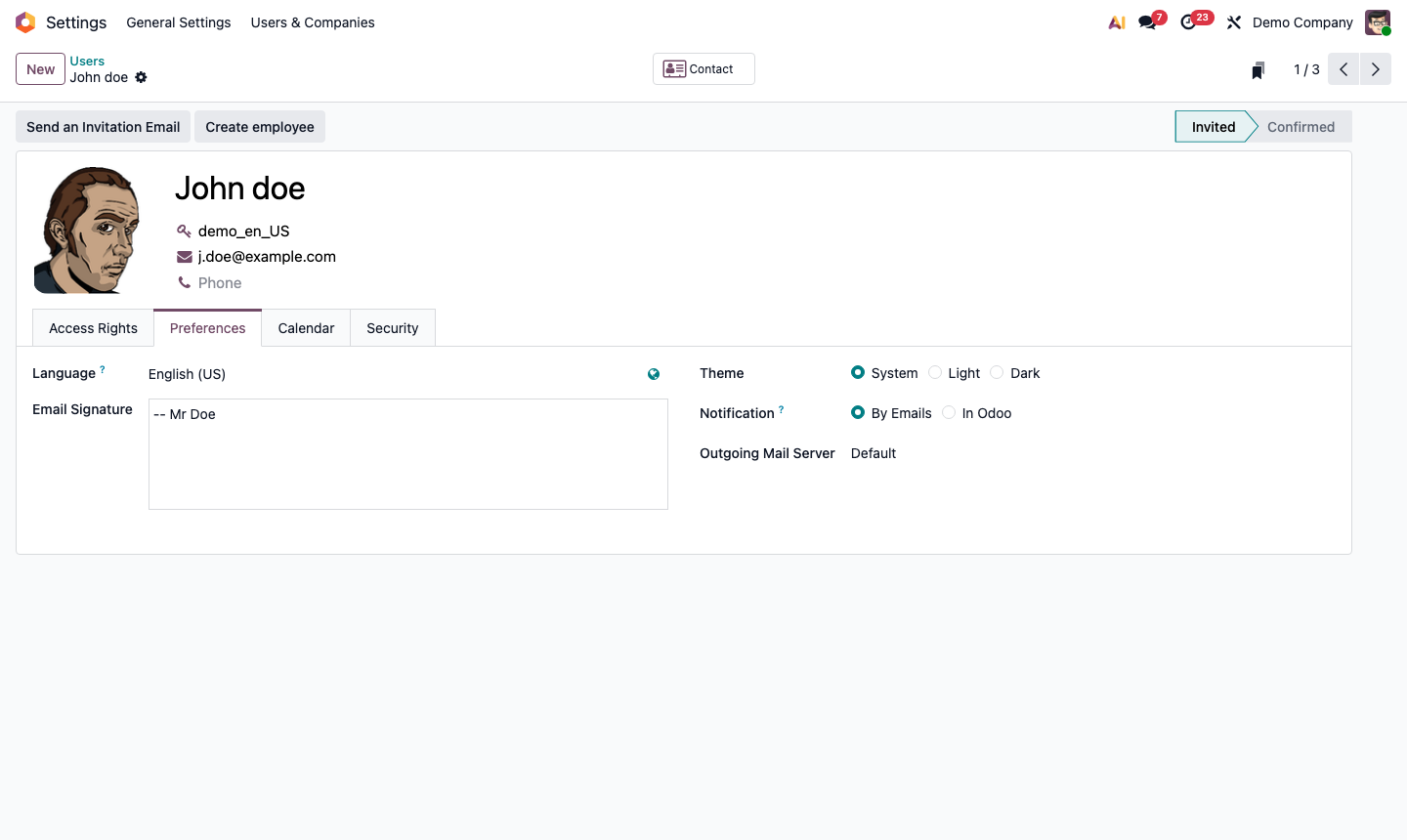
Each user controls their own notification preferences. Go to Settings → Users and open a user record, then click the Preferences tab.

Key settings:

  • Notification — “In Odoo” (web/mobile alerts) or “By Email” (receives email for every chatter message)
  • Email — the address where system notifications are sent

For bulk changes, advise users to set their own preferences at Settings → Preferences (top-right avatar menu).

Step 5: User preferences tab showing notification type and email address settings

6

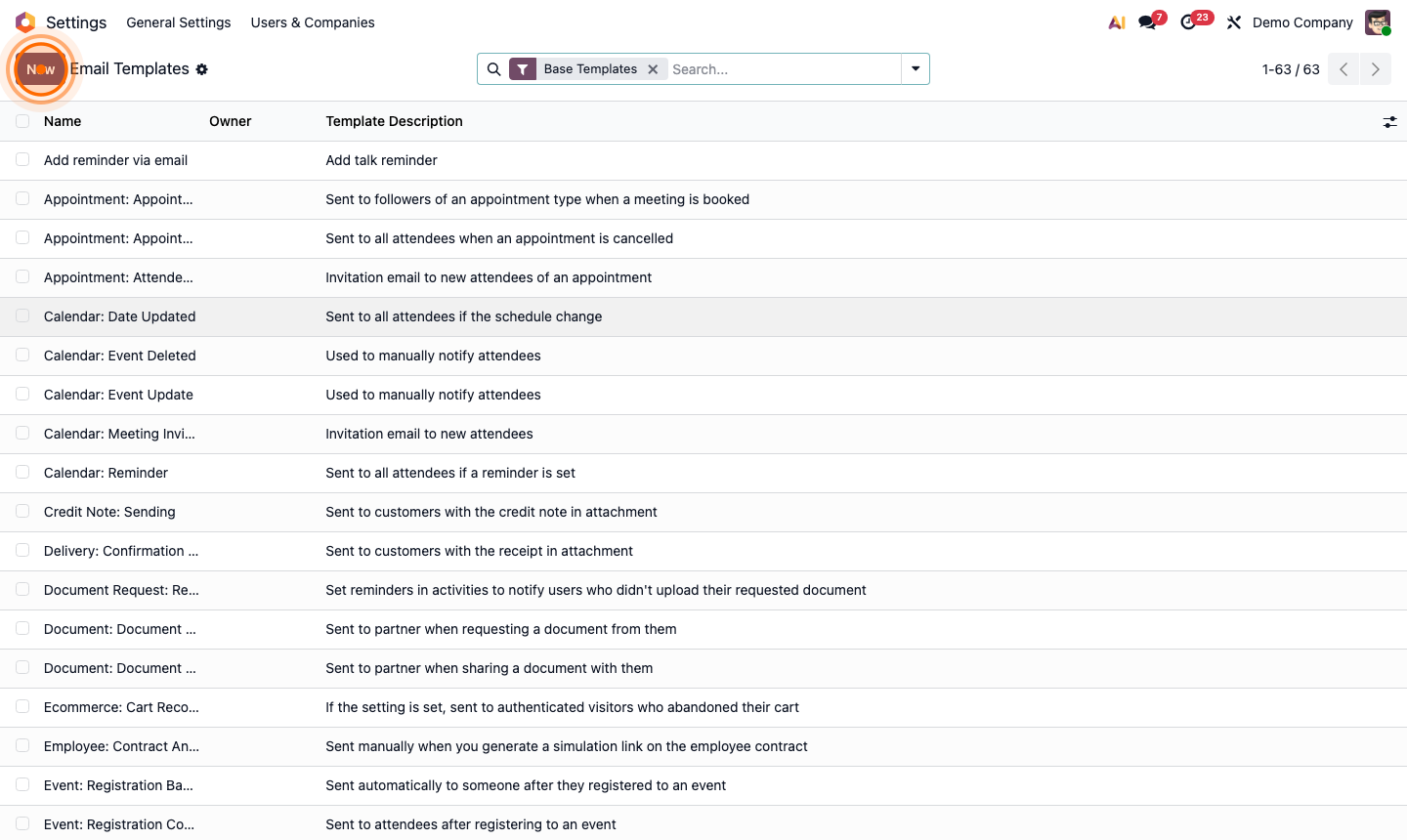
Customize Email Templates

Odoo uses templates for all automated emails (invoices, order confirmations, purchase orders, etc.). To customize them:

Go to Settings → Technical → Email → Templates.

Find the template you want to edit (e.g., “Sales Order: Send by Email”):

  • Subject — the email subject line (supports dynamic fields like ${object.name})
  • Body — HTML editor with Odoo’s QWeb templating
  • From — the sender address (overrides default)
  • Reply To — controls where replies go

Step 6: Email template editor showing subject, HTML body, and dynamic field variables