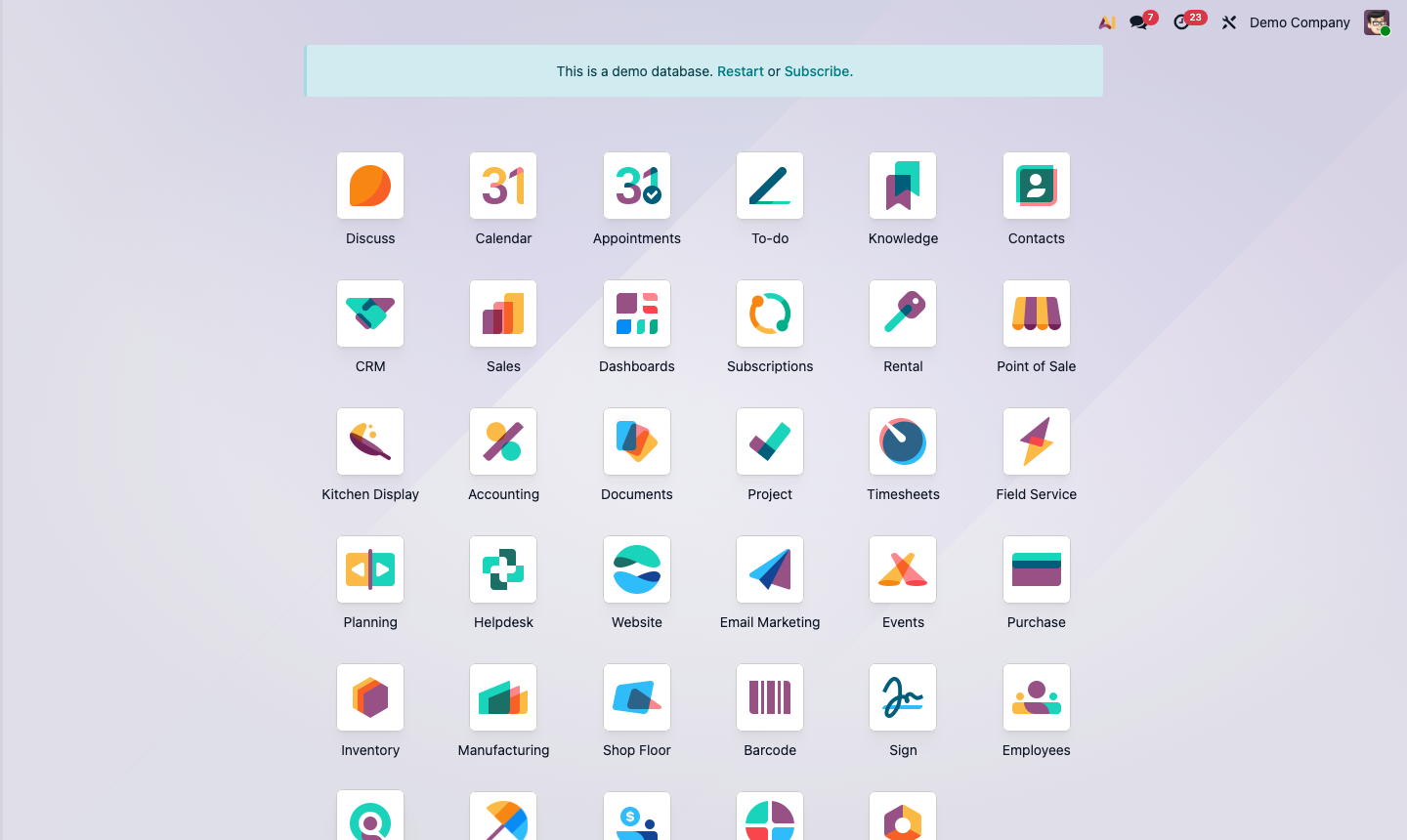
Open General Settings
From the main Odoo dashboard, click the Settings app. The page opens directly on General Settings, which is divided into sections: Users, Languages, Companies, Emails, and more.
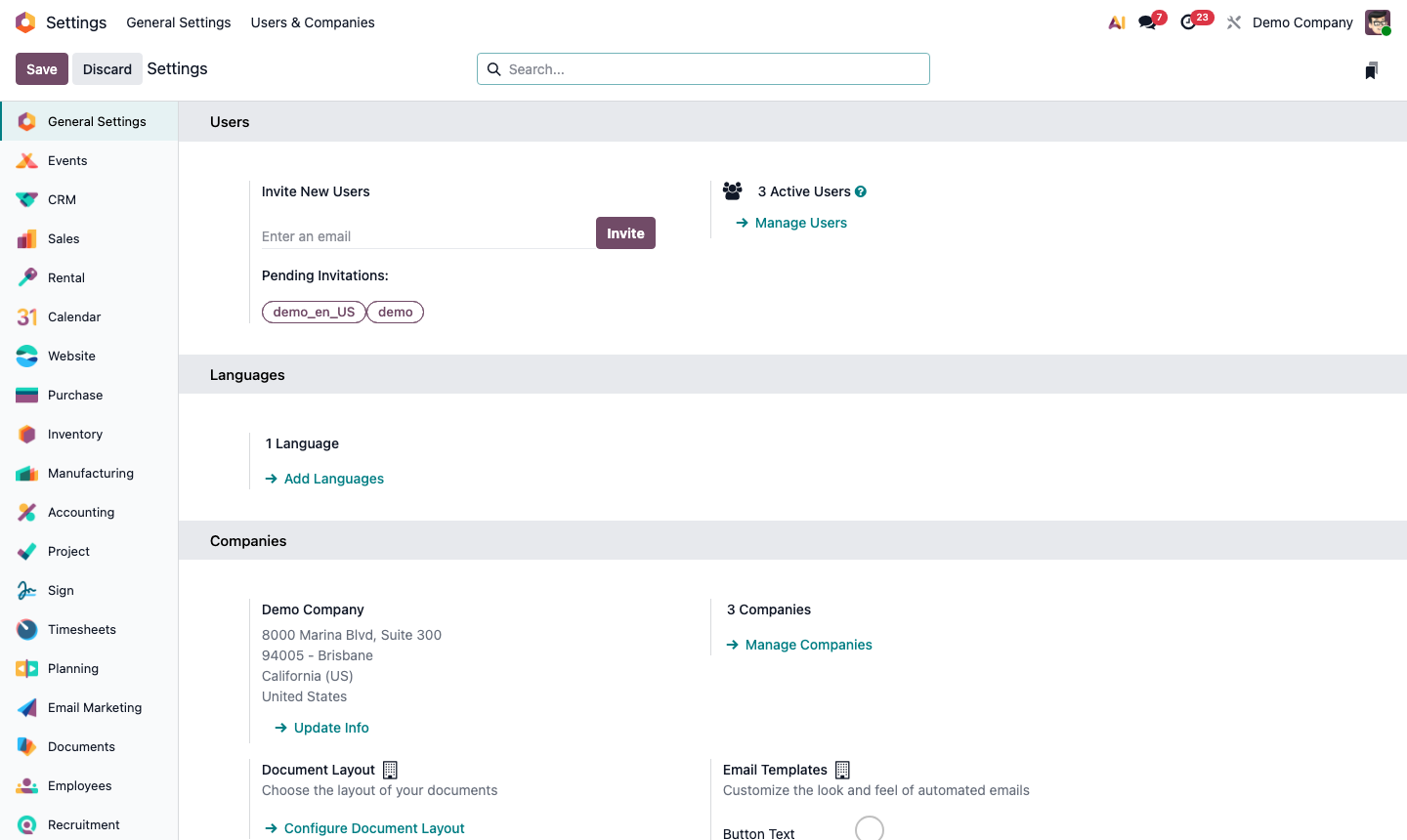
Configure your company identity, document layout, and email settings before going live.
This is the first procedure to complete when setting up a new Odoo instance. Company settings control how your business appears on all outgoing documents, emails, and reports.
From the main Odoo dashboard, click the Settings app. The page opens directly on General Settings, which is divided into sections: Users, Languages, Companies, Emails, and more.
Scroll to the Companies section. Click → Update Info next to your company name.
Fill in all required fields:
Click Save when done.
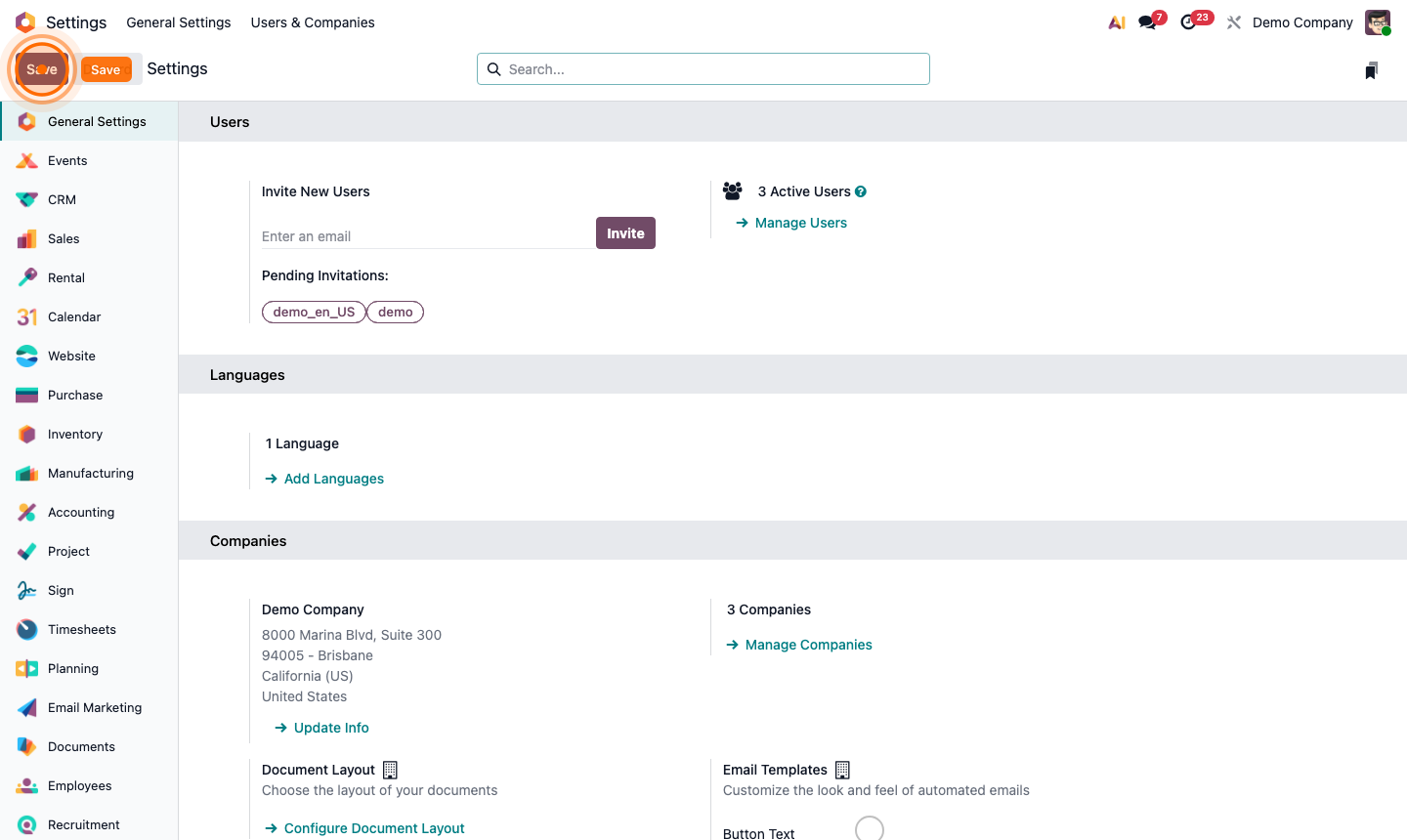
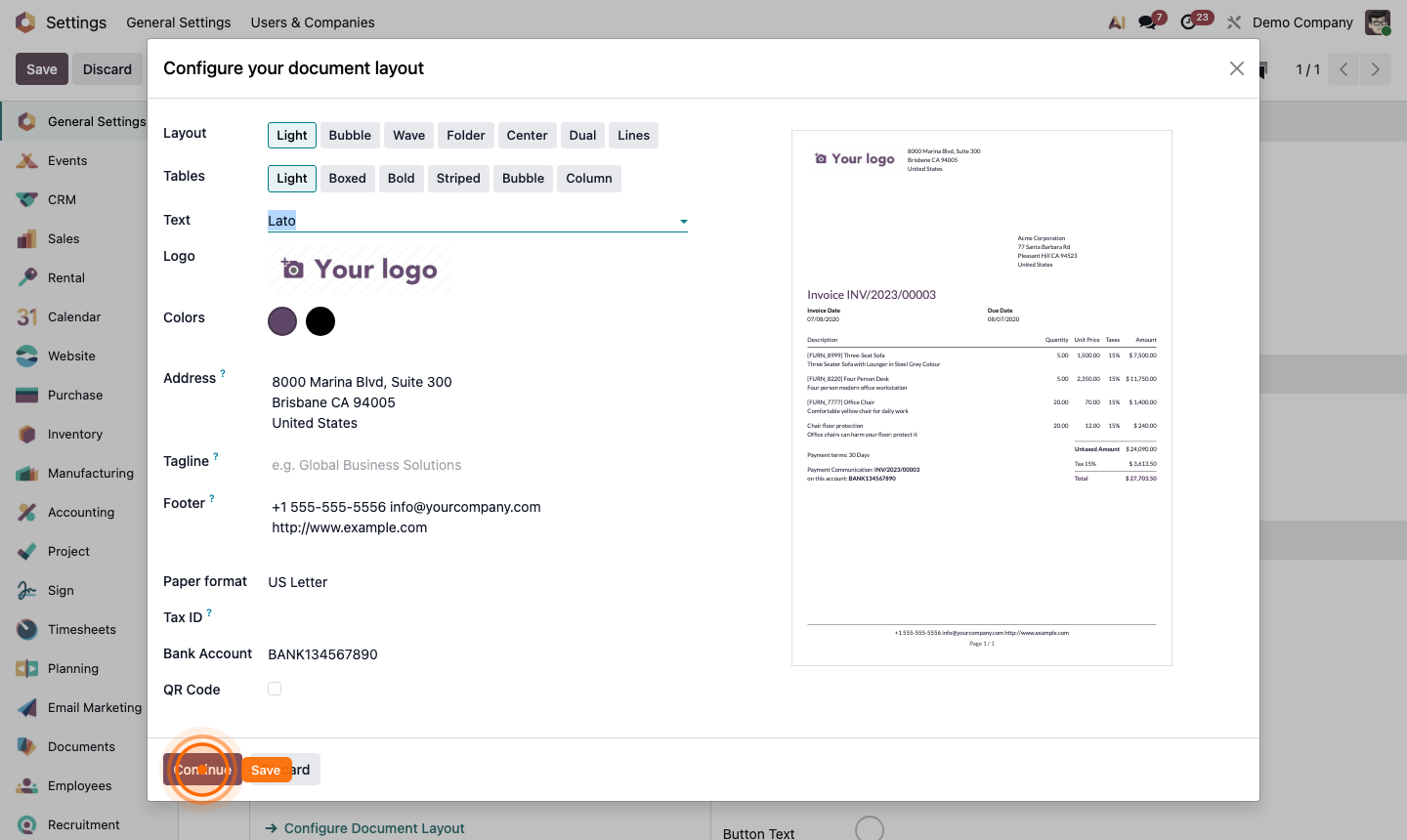
Still in the Companies section, click → Configure Document Layout.
Choose your preferred document style — this controls how invoices and quotes look when printed or emailed:
Use the live preview on the right to check the result, then click Save.
Scroll to the Emails section.
yourcompany.com) so replies to emails land back in Odoo.Click Save.
Scroll to the Units of Measure section. Select:
These units appear on delivery orders and product specifications. Click Save.